Ship The Cargo Controls
Platform-friendly steering, throttle, camera, and cargo interact tips for every device.
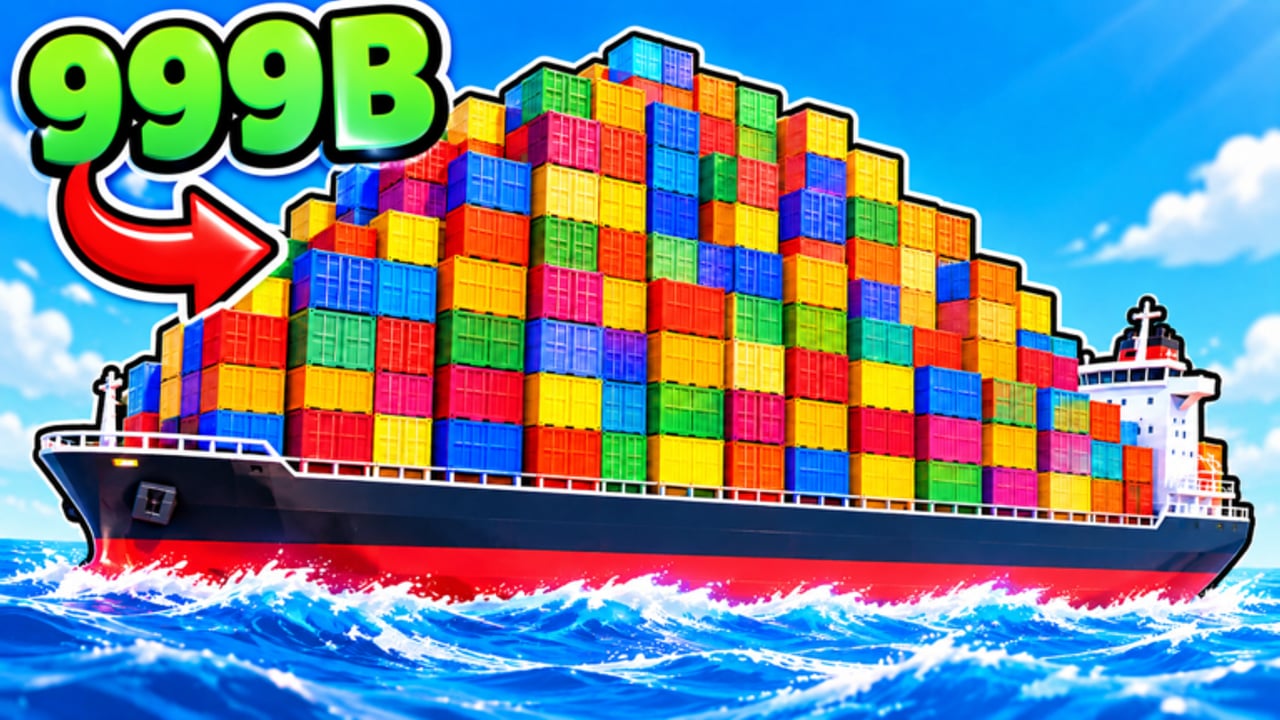
Ship The Cargo supports Desktop, Console, Mobile, and Tablet, and the difference between a clean delivery and a crumpled bow often comes down to input comfort. This page is a practical controls overview: how to think about steering, throttle, camera, and interact actions across platforms, plus accessibility habits that keep long sessions playable.
Exact button prompts can shift with Roblox updates or in-game UI tweaks, so treat on-screen hints as the source of truth when something looks new. Use this guide to build good habits, then jump into getting started and how to deliver cargo to apply them on real routes.
Shared control pillars
No matter the device, cargo captains manage four jobs:
- Steering — point the bow without overcorrecting.
- Throttle — choose a speed you can still recover from.
- Camera — keep docks, waves, and threats readable.
- Interact / load UI — accept jobs, grab cargo, sell, and use world prompts.
Mastering those four beats memorizing every hotkey on day one. If you can dock slowly, look where you are going, and hit the correct prompt under pressure, you are already ahead of most new players.
Desktop controls mindset
Keyboard and mouse players usually get the finest throttle and camera precision.
- Use small steering taps near piers instead of holding a hard turn.
- Ease off movement keys early when approaching a dock; momentum is real enough to matter.
- Keep the mouse free for camera checks on cargo seating and nearby boats.
- Bind or learn whatever interact key the game shows for loading and selling, then practice it at a standstill before a busy pier.
Desktop is ideal for learning route lines because you can micro-adjust heading while watching the horizon. If your frame rate dips on crowded 12-player servers, lower camera thrash — wild spinning makes collisions more likely than it prevents them.
Console controls mindset
Gamepad steering is smooth but easy to oversteer at high speed.
- Prefer gentle stick inputs; snap turns are for open water, not marina traffic.
- Map mental “dead zones” near docks: low throttle plus soft steering.
- Use the look stick to verify cargo and pier alignment without changing course blindly.
- Learn which face button or trigger the UI highlights for interact/load actions and keep your thumb ready before you touch the crates.
If vibration or trigger resistance is available in your Roblox or device settings, use comfort options that help you feel impacts without fatigue. Console players often excel at long ocean legs once throttle discipline clicks.
Mobile and Tablet controls mindset
Touch controls trade precision for flexibility. You can still deliver competitively with a few habits:
- Play in landscape when possible for a wider view of docks and waves.
- Keep thumbs from covering critical prompts; reposition UI if Roblox or the experience allows customization.
- Use shorter throttle bursts near piers rather than pinning full speed.
- Zoom or adjust camera so the bow and destination stay visible together.
- Rest the device securely — tablet stands or a stable grip reduce accidental inputs during storms.
Mobile captains should lean on shorter early routes from the money guide until docking feels natural. There is no shame in choosing safer jobs while your thumbs learn the boat’s turning circle.
Camera habits that prevent disasters
Bad camera work causes “mystery hits.” Build a routine:
- Before leaving port, glance at cargo placement.
- Mid-route, sweep for threats and traffic, then return to a stable forward view.
- On final approach, prioritize a side or rear angle that shows distance to the pier.
- After any collision, stop camera panic; stabilize first, then assess damage.
A calm camera also helps when weather or creatures (or other live hazards) appear. Survival starts with seeing the problem — details in survive ocean dangers.
Interact, load, and sell without fumbling
Most delivery failures at the pier are UI failures:
- Come to a near stop before spamming interact.
- Confirm you are highlighting the correct prompt (job board versus crate versus sell point).
- Load methodically so you do not walk away missing a unit.
- After selling, check that currency updated before racing back out.
If prompts refuse to appear, back off a few meters, square the boat, and try again. Clipping inside geometry often hides interactions on every platform.
Accessibility and comfort tips
Long shipping sessions punish bad ergonomics.
- Lower sensitivity if you constantly overshoot docks.
- Increase sensitivity slightly only if camera turns feel sluggish when scanning threats.
- Take short breaks between stacked runs; fatigue creates collisions.
- Use headphones if audio cues help you notice impacts or alerts.
- On touch devices, clean the screen — oily swipe noise is a real control issue.
- Color and contrast: if a UI element is hard to see, rely on prompt text and relative position, not color alone.
Roblox platform settings (reduced motion options where available, volume, and performance modes) can make Ship The Cargo more comfortable without changing how cargo works.
Practice drill (five minutes)
Before a serious money session:
- Spawn and identify steer, throttle, camera, and interact prompts on your device.
- Leave the dock at low speed and return with a square landing.
- Practice one load interaction at a crawl.
- Do a short open-water S-curve to feel turning radius at mid throttle.
- Only then accept a real job from the delivery walkthrough checklist.
When controls feel invisible, upgrades and route theory finally matter. Until then, every fancy boat from the tier list still needs a calm captain at the wheel. Revisit this page whenever you switch devices — Desktop habits do not automatically transfer to Mobile, and that is normal.
Frequently Asked Questions
Quick answers to the most common questions.
What platforms does Ship The Cargo support?
Ship The Cargo supports Desktop, Console, Mobile, and Tablet. Use on-screen prompts for exact bindings, and focus on steering, throttle, camera, and interact habits for your device.
Why do I keep crashing into docks?
Most docking crashes come from high throttle and late steering. Cut speed early, use small course corrections, and set the camera so you can see distance to the pier.
Are Mobile controls good enough for serious deliveries?
Yes, with landscape play, short throttle bursts near piers, and safer early routes while you learn the turning circle. Precision improves quickly with a five-minute docking drill.
What should I practice first on Console?
Practice gentle stick steering at low throttle into a berth, then learn the highlighted interact button for loading and selling before taking long ocean jobs.
Do control tips change after upgrades?
Faster or heavier boats can change stopping distance and turn rate. Rehearse a slow docking approach whenever you unlock major speed, handling, or hull upgrades.